How to configure Thunderbird Filelink for usei with Sciebo
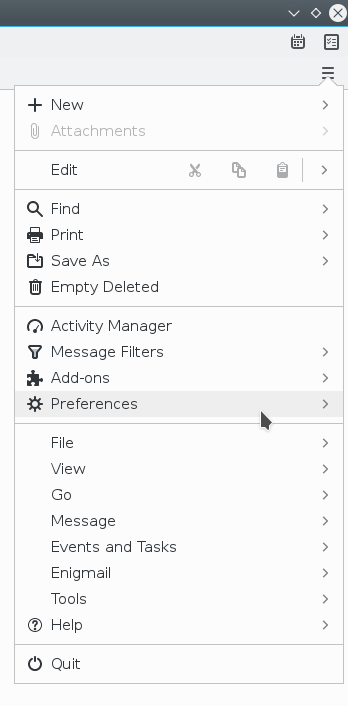
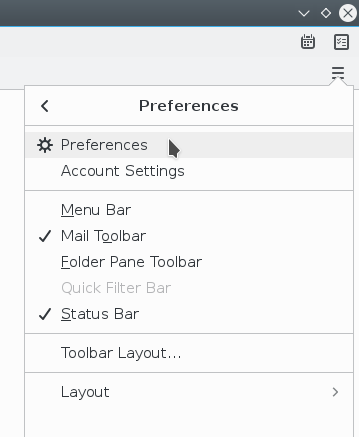
Open the menu via the hamburger button (≡). Now select Preferences and again Preferences in the next menu.
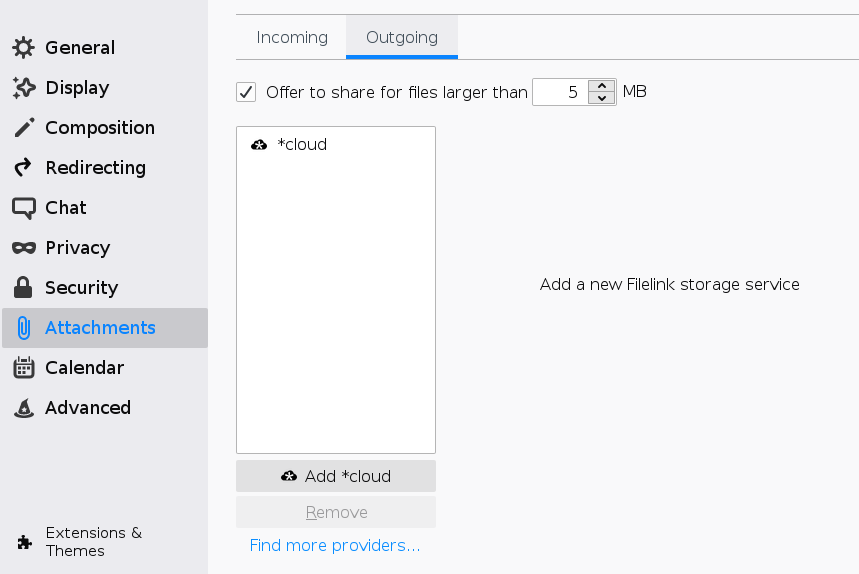
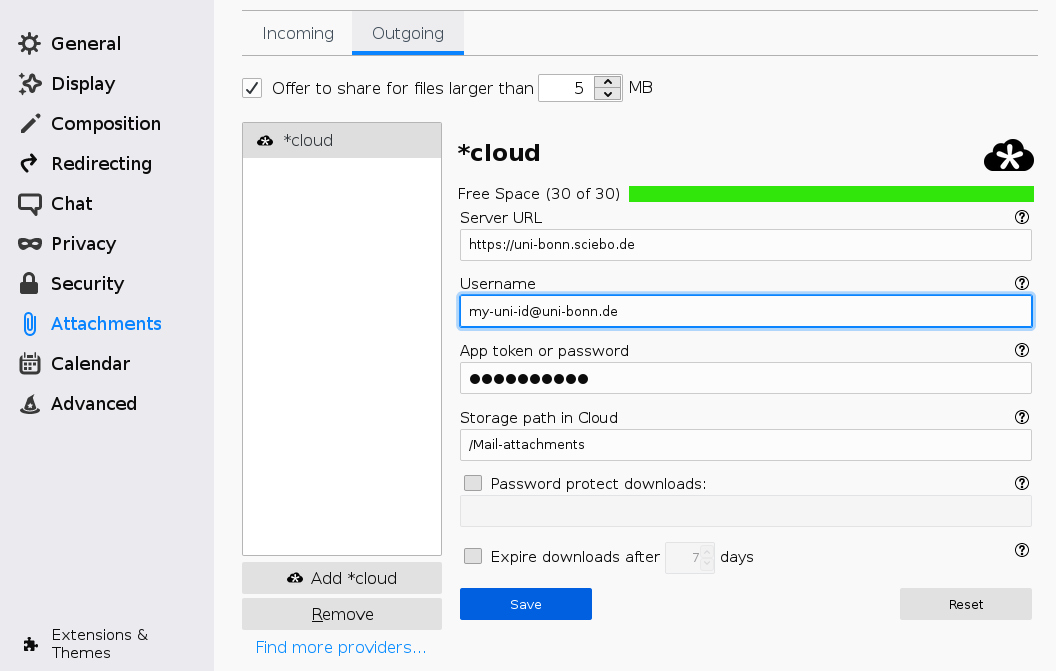
In the Preferences window select Attachments on the left.. Switch to the tab Outgoing and click the button Add *cloud.
Now enter the following settings
- Server URL:
https://uni-bonn.sciebo.de - Username: your Sciebo username, probably your Uni-ID
- App token or password: your Sciebo password
- Storage path in Cloud: the directory where your attachments will be saved. It defaults to the folder
/Mail-attachments. Use this directory only for attachments. - Password protect downloads If set, the recipients will have to enter this password to download the attachment. You will need to tell the recipients this passwort yourself. Do not use your Sciebo password!
- Expire downloads after [7] days" You can limit the validity of the donload links to a set number of days. Do note that your recipients may need toask you for a new link, if you do so.
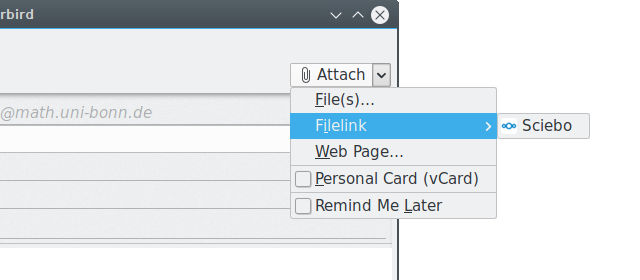
Now your able to send attachments via Sciebo by clicking Attach → Filelink → Sciebo. This allows you to send larger files than what email would allow you normally.
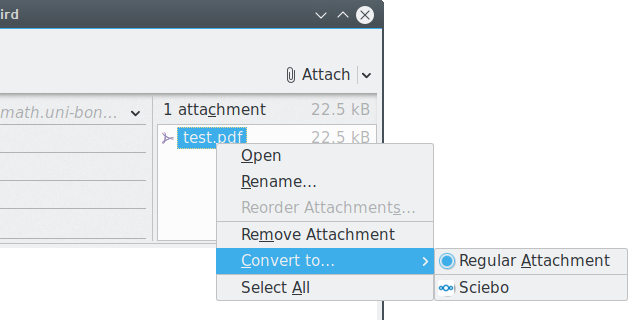
Alternativly you can convert an existing regular attachment via right clicking on it and selecting Convert to… → Sciebo.